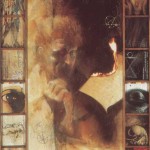
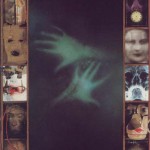
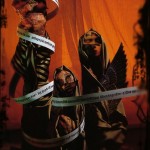
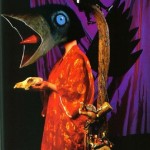
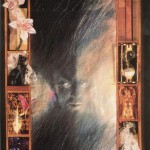
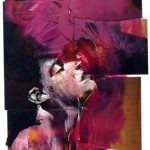
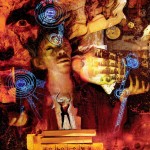
Dave McKean



Some basic tips to get started with Photoshop:
Open Photoshop. Next, click file > new > create a name, set the width to 11 inches and the height to 17 inches, set the resolution to 300 pixels/inch > make sure color mode is RGB > press OK
Guides: Before you get started, add new guides to create a border. Click view > new guide > then create four guides: two vertical guides, one at .5 inches and one at 10.5 inches. Then create two horizontal guides, one at .5 inches and one at 16.5 inches. You can create more guides if you want as you work by dragging in from the rulers. To delete a guide simply drag it out of the workspace. To show or hide guides, click command ;
Cutting and Pasting: Save a collection of JPEGS to the desktop. To open an image in photoshop, simply drag it onto the blue PS icon. To cut and paste an image into your workspace, click on the image you want to add and hit command A to select all and then command C to copy. Go to your workspace and press command V to paste. To deselect, press command d.
Layers: When you paste a new image into your workspace, a new layer will automatically be created. If you can’t see the layer window then click window and be sure that layers are selected. As you add images you will see that the layer window can quickly become overly complicated. Notice at the bottom of the layers window the folder (for organizing layers), the trash can, and the button for adding new layers. You can organize your arrangements by naming the layers… do this with a control click in the layer window, then select layer properties.
Navigation: To zoom out press command – to zoom in press command +. Press command 0 (zero) to fit the image on the screen. To move around in the workspace, hold the spacebar down (notice the little hand) and use the mouse to drag your viewing area to where you want it.
Move: To move your newly pasted image around, click V to select the move tool. Click and drag the image to where you want it.
Background Color: To change the color of your background, select the background layer. Next, click on the paintbucket tool. In the tool palette you can see two swatches of color at the bottom. Click on the foreground color, select the color you want in the dialogue box. Finally, with the paintbucket tool, click on the background to apply this color.
Tranformations: To transform an image, in the layer window hold command and click on the layer icon—this will select the contents of the whole layer. Click edit > transform, and then select scale, rotate, skew, etc. to do what you want to the image. Once you’re happy with the transform, press enter to apply the change. To deselect, press command d.
Undo: Of course, at any point you can press command z to undo an action. If you press command z again it will redo the action. If you want to undo multiple actions then press alt command z—this will allow you to step backward as far as you’d like.
Trim with the Lasso: To trim away parts of an image, use the lasso tool. I usually opt for the polygonal lasso for greater control. Be sure you have the right layer selected, then make multiple clicks to select the area you want to cut away. You normally need to zoom way in to do this well, so your space bar will be really important for moving around. You’ll need to return to where you started to make an enclosed loop. After you create your loop, if you decide that you want to include more in your selection then hold the shift key (notice the +) and select the area you want to add. If you want to select less then hold down the alt or option key (notice the -) and then select what you want to remove from the selection. When you’re ready press command X to delete the selection.
Saving: Save your file to your netspace. Programs sometimes crash, so be sure to save often!